CALM protection
CALM changes with the selected mode. In Zero Latency it is a causal tonal guard that tracks narrow-band dominance sample by sample. In Studio 21 ms it becomes the full Mamba spectral suppressor for severe feedback risk.

CALM EverClean is a two-mode live vocal processor. In Zero Latency, EverClean is the primary real-time defeedback and source-cleanup engine while CALM adds causal narrow-band protection. For difficult channels, Studio 21 ms activates the full CALM Mamba network and the higher-resolution DNS path. This guide explains when to use each route.
CALM changes with the selected mode. In Zero Latency it is a causal tonal guard that tracks narrow-band dominance sample by sample. In Studio 21 ms it becomes the full Mamba spectral suppressor for severe feedback risk.
EverClean is the primary Zero Latency defeedback and cleanup engine. It detects and removes emerging feedback and resonant ringing while reducing background dirt, stage wash, room pressure, low-level bleed, and vocal-channel haze without adding host-reported latency.
The main screen is designed for quick live decisions: choose the latency mode, enable the engines you need, set the two large controls, and use Auto Gain for honest level matching.
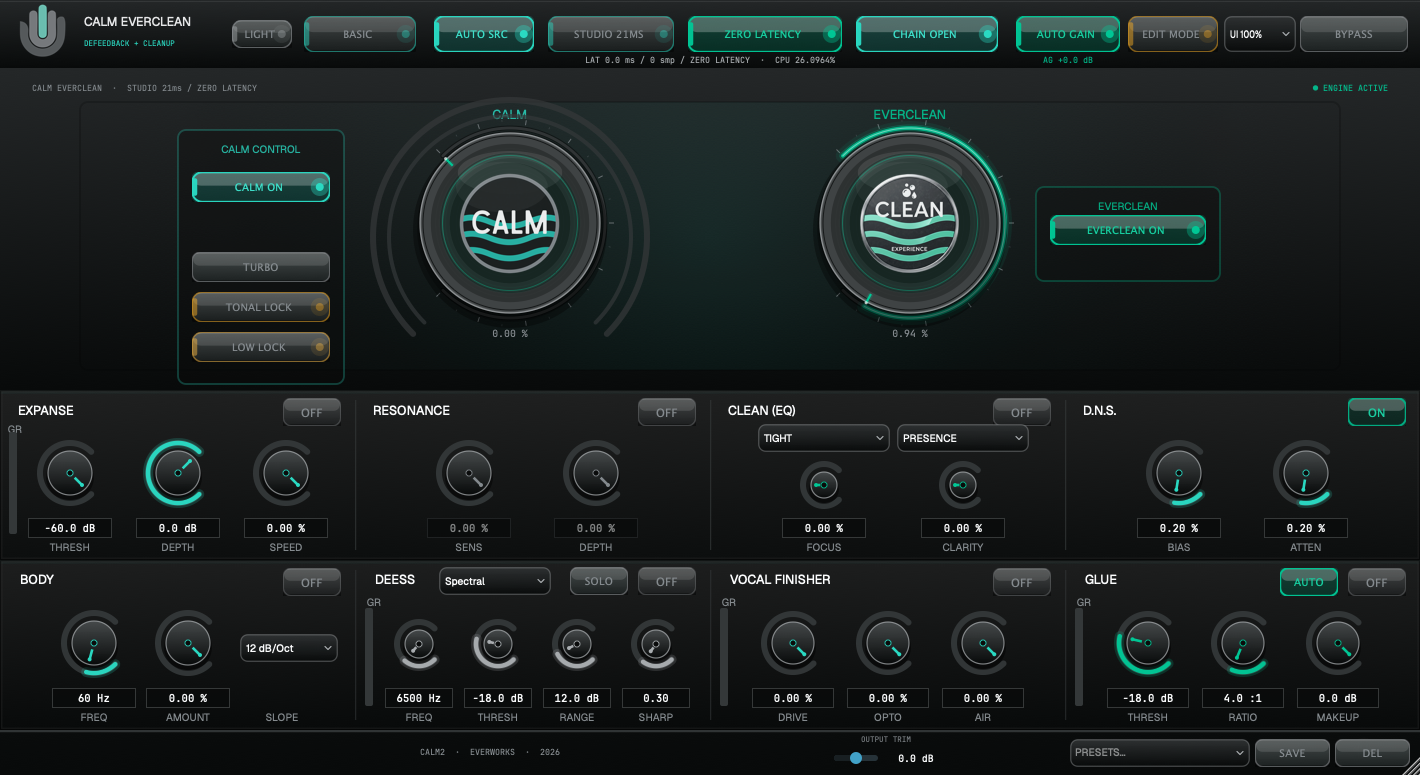
| Control | What it does | Recommended use |
|---|---|---|
| Light | Switches the visual theme or brighter interface mode, depending on the build. | Use whichever theme is more readable in the venue. |
| Advanced | Shows or hides the deeper channel-strip controls. | Keep Basic for fast operation; open Advanced during setup or detailed tuning. |
| Chain Open | Opens the full vocal channel strip below the main CALM and EverClean controls. | Use it during setup when you need Expanse, Resonance, Clean EQ, DNS, Body, DeEss, Vocal Finisher, or Glue. |
| Auto SRC | Keeps internal processing consistent across host sample rates. | Leave enabled unless troubleshooting a specific host or sample-rate issue. |
| Studio 21 ms | Activates the CALM Mamba network, high-resolution spectral suppression, and the more selective DNS path. | Use for difficult feedback and noise cases when the route can accept 21 ms. |
| Zero Latency | Runs EverClean as the main real-time defeedback and cleanup stage, assisted by CALM's causal tonal guard and causal DNS. | Use first for monitors, live vocals, lavaliers, headsets, and latency-sensitive chains. |
| Auto Gain | Compensates output level so bypass comparisons are not fooled by loudness. | Keep enabled while setting controls, then decide if you want it on for the show. |
| Bypass | Disables the whole plugin for comparison or emergency pass-through. | Use often during setup to confirm the plugin is improving the channel. |
Controls the protection layer for the selected mode. In Zero Latency it scales the causal narrow-band guard; in Studio 21 ms it scales the Mamba spectral suppression. Higher values are more protective and more audible.
Start here: 20-35% for normal vocals, 40-60% for risky live channels.
Controls the combined defeedback and cleanup response of the EverClean engine. It is the main Zero Latency control for suppressing feedback and resonant ringing while reducing channel dirt, stage wash, bleed, and room haze.
Start here: 20-45% for natural control, 50-70% for strong feedback and cleanup pressure.
| Button | Meaning | How to use it |
|---|---|---|
| CALM On / Off | Enables CALM's causal guard in Zero Latency or its Mamba network in Studio 21 ms. | Start with EverClean, then add CALM when the channel needs tonal or feedback protection. |
| DNS On / Off | Enables dynamic noise suppression. | Use it for HVAC, hiss, room noise, stage wash, and steady background noise. |
| Turbo | Makes CALM more assertive and faster in difficult situations. | Use only when the system is near feedback or the vocal needs stronger protection. |
The three layers have different jobs. EverClean provides the primary real-time defeedback and source cleanup, CALM adds tonal protection, and DNS focuses more directly on background noise. If several layers are active, set them conservatively and listen to consonants, body, and high-frequency air.
| Button | Meaning | How to use it |
|---|---|---|
| EverClean On / Off | Enables or disables the EverClean real-time defeedback and cleanup engine. | Use it as the main Zero Latency feedback-suppression and cleaning stage. Start low, then raise until ringing and source dirt are controlled. |
| Mode | Latency | Strength | Best for |
|---|---|---|---|
| Zero Latency | 0 samples added by the zero-latency path. | EverClean real-time defeedback and source cleanup, CALM causal narrow-band guard, and five-zone causal DNS. | Live monitoring, wedges, IEM-sensitive performers, lavs, headsets, corporate rooms. |
| Studio 21 ms | About 21.3 ms at 48 kHz. | Full CALM Mamba network, high-resolution spectral feedback suppression, and more selective DNS. | Broadcast, streaming, mixing, theatre, installations, or live workflows that can accept latency. |
Some hosts do not refresh plugin delay compensation immediately after a mode change. If the host latency display does not update, save the session and reload the plugin, or choose the final latency mode before the show.
Chain Open exposes the full vocal-shaping section. The upper row contains the corrective cleanup tools: Expanse, Resonance, Clean EQ, and DNS. The lower row contains the tone, de-essing, finishing, and glue stages. Use the two main engines first, then use the channel strip for source shaping and final polish.
| Module | Row | Purpose | Practical advice |
|---|---|---|---|
| Expanse | Upper row | Controls downward expansion behavior for background spill, room floor, and low-level channel dirt. | Use before heavy DNS if the channel needs more separation between vocal and background. Keep it gentle on expressive singers. |
| Resonance | Upper row | Targets resonant pressure, nasal build-up, ringing, and tonal harshness that can make a vocal feel unstable. | Use after CALM has stabilized the channel. Too much can make the source smaller, so adjust while the singer is active. |
| Clean (EQ) | Upper row | Focused vocal EQ section for tightening or clarifying the source after cleanup. | Use the mode selectors to choose the behavior, then adjust Focus and Clarity in small moves. |
| D.N.S. | Upper row | Dynamic noise suppression for steady background noise, stage wash, HVAC, hiss, and room bed. | Set Bias first, then Attenuation. If the voice loses air or consonants, reduce Attenuation. |
| Body | Lower row | Adds or manages low-mid vocal weight and proximity. | Use gently if cleanup makes the voice feel too light. |
| DeEss | Lower row | Controls harsh consonants, sibilance, and excessive high-frequency bite. | Choose the detector mode, then set frequency, threshold, range, and sharpness only as far as needed. |
| Vocal Finisher | Lower row | Final tone and presence shaping. | Use after CALM and EverClean, not as a fix for over-processing. |
| Glue | Lower row | Dynamic control for keeping the vocal more even. | Small ratios and conservative thresholds work best live. |
This section is intended for beta testers. Each screenshot shows one area of the plugin, followed by the exact purpose of each visible button, knob, fader, or selector.

| Control | What it does | When to use it |
|---|---|---|
| Light | Changes the interface theme/readability mode. | Use the mode that is easiest to read in the room. |
| Basic / Advanced | Switches between the simple two-engine view and the deeper control view. | Use Basic during the show; use Advanced during setup or detailed tuning. |
| Auto SRC | Controls automatic sample-rate consistency inside the plugin. | Leave it on unless a specific host/sample-rate issue is being tested. |
| Studio 21ms | Enables the high-context CALM path with reported latency. | Use when feedback control and tonal precision are more important than minimum latency. |
| Zero Latency | Enables EverClean's zero-added-latency defeedback and cleanup path. | Use for live monitoring, wedges, IEM-sensitive singers, lavs, and headset mics; add CALM as the tonal guard. |
| Chain Open | Opens the full channel strip below the main engines. | Use it to access Expanse, Resonance, Clean EQ, DNS, Body, DeEss, Vocal Finisher, and Glue. |
| Auto Gain | Applies automatic output level compensation. | Use it while comparing bypass vs processed sound so level does not fool the ear. |
| UI Size | Changes the interface scale. | Use smaller values on laptops or dense host layouts; use larger values on stage screens. |
| Bypass | Bypasses the whole plugin. | Use it for A/B checks or emergency pass-through. |

| Control | What it does | Practical use |
|---|---|---|
| CALM On / Off | Enables CALM's causal tonal guard in Zero Latency or its Mamba engine in Studio 21 ms. | In Zero Latency, add it after EverClean when the channel needs more tonal stability. |
| CALM Knob | Main amount for feedback-risk reduction and tonal-stability processing. | Start around 20-35%. Raise only until the channel becomes stable. |
| Turbo | Increases CALM reaction strength for difficult channels. | Use only when the system is close to feedback or needs stronger protection. |
| Tonal Lock | Helps CALM focus on stable tonal build-up and ringing behavior. | Use for persistent whistles, nasal rings, and tones that sit inside the vocal. |
| Low Lock | Extends tonal tracking into lower resonant areas. | Use when the problem is low-mid boom, stage rumble resonance, or low feedback pressure. |
| Outer LED Ring | Shows the amount/position of the CALM control visually. | Useful for fast stage visibility. |

| Control | What it does | Practical use |
|---|---|---|
| EverClean On / Off | Enables or disables the EverClean real-time defeedback and cleanup engine. | Use it first to remove feedback and ringing while controlling dirt, stage wash, room pressure, and bleed. |
| EverClean Knob | Main amount for combined defeedback and cleanup intensity. | Start around 20-45%. Raise until feedback pressure and source dirt are controlled, then stop before the vocal thins out. |
| Outer LED Ring | Shows the EverClean amount visually. | Useful when adjusting quickly without reading small text. |

| Control | What it does | Practical use |
|---|---|---|
| Off / On | Enables or disables Expanse. | Turn it on when the channel has low-level room or stage spill between vocal phrases. |
| Thresh | Sets the level where Expanse begins reacting. | Set low enough to catch background, but not so high that it closes around quiet words. |
| Depth | Sets how much reduction Expanse can apply. | Use moderate values for live vocals. High depth can sound gated. |
| Speed | Controls how quickly Expanse opens and releases. | Use faster settings for speech; slower settings for natural singing. |
| Vertical Meter | Shows activity/reduction behavior. | If it is always moving hard, lower Depth or adjust Thresh. |

| Control | What it does | Practical use |
|---|---|---|
| Off / On | Enables or disables the Resonance module. | Turn it on when the vocal has ringing, nasal pressure, or harsh static tones. |
| Sens | Controls how easily Resonance reacts. | Raise it until the bad tone is controlled, then stop. |
| Depth | Controls how much resonance reduction is applied. | Use carefully. Too much can make the voice smaller or hollow. |

| Control | What it does | Practical use |
|---|---|---|
| Mode Selector | Selects the EQ behavior, such as tighter cleanup or tonal shaping. | Use Tight for control; use more open/presence styles for vocal clarity. |
| Off / On | Enables or disables Clean EQ. | Keep off until CALM and EverClean are already set. |
| Character Selector | Selects the tonal focus, such as Presence. | Choose the target character before adjusting the knobs. |
| Focus | Controls how strongly Clean EQ focuses or tightens the vocal. | Small moves are best. Too much can make the voice narrow. |
| Clarity | Controls brightness and intelligibility shaping. | Use to recover definition after cleanup, but avoid harshness. |

| Control | What it does | Practical use |
|---|---|---|
| Off / On | Enables or disables DNS. | Use for steady background noise, HVAC, hiss, room bed, and stage wash. |
| Bias | Controls how strongly DNS identifies material as noise. | Raise until noise starts to fall, but stop before the vocal loses natural texture. |
| Atten | Controls the available amount of noise attenuation. | Use the smallest amount that solves the problem. Too much can remove air or consonants. |

| Control | What it does | Practical use |
|---|---|---|
| Off / On | Enables or disables Body. | Use when cleanup makes the voice feel too light or distant. |
| Freq | Sets the body/proximity frequency area. | Lower values add weight; higher values affect more low-mid presence. |
| Amount | Controls how much Body processing is applied. | Use gently. Too much can make the vocal boomy. |
| Slope Selector | Selects the slope or shape of the Body curve. | Use steeper slopes for more focused correction. |

| Control | What it does | Practical use |
|---|---|---|
| Mode Selector | Selects the de-essing detection/processing style, such as Spectral. | Use Spectral when harshness is frequency-specific or changing. |
| Solo | Monitors the detected sibilant/reduced area. | Use only while setting the de-esser, then turn it off for normal use. |
| Off / On | Enables or disables DeEss. | Turn on only when S, T, CH, or bright consonants are painful. |
| Freq | Sets the sibilance center frequency. | Typical vocal range is often around 5-9 kHz, but set by ear. |
| Thresh | Sets when de-essing starts. | Lower threshold catches more consonants. Avoid triggering on the whole vocal. |
| Range | Sets the maximum de-essing reduction. | Use enough to tame harshness, not enough to create a lisp. |
| Sharp | Controls how focused or narrow the de-essing action is. | Higher values are more surgical; lower values are smoother. |
| Vertical Meter | Shows DeEss activity/reduction. | If it moves constantly, the threshold is probably too low. |

| Control | What it does | Practical use |
|---|---|---|
| Off / On | Enables or disables Vocal Finisher. | Use after the channel is already stable and clean. |
| Drive | Adds final density or tone drive. | Use very lightly live. Too much can increase harshness or feedback risk. |
| Opto | Adds smooth vocal leveling behavior. | Good for gentle control on speech or singing. |
| Air | Adds high-frequency openness. | Use to recover top-end after cleanup, but avoid brittle vocals. |
| Vertical Meter | Shows finisher activity. | Keep activity subtle for natural live sound. |

| Control | What it does | Practical use |
|---|---|---|
| Auto | Enables automatic behavior for the Glue stage. | Use when you want faster setup and less manual gain staging. |
| Off / On | Enables or disables Glue. | Use when the vocal needs to sit more consistently in the mix. |
| Thresh | Sets when Glue begins compressing. | Lower until peaks are controlled, but do not flatten the performance. |
| Ratio | Sets compression strength. | Use lower ratios for natural live vocals. |
| Makeup | Restores output level after compression. | Match processed and bypassed loudness for fair comparison. |
| Vertical Meter | Shows compression activity. | If it is always pinned, raise threshold or lower ratio. |

| Control | What it does | Practical use |
|---|---|---|
| Output Trim | Final manual output level trim. | Use for gain matching when Auto Gain is off or when the host needs a specific level. |
| Presets | Loads stored plugin settings. | Use for repeatable starting points across shows or vocal types. |
| Save | Saves the current settings as a preset. | Save after soundcheck once the channel is stable. |
| Del | Deletes the selected preset. | Use carefully; this is for cleaning old or unwanted presets. |
Mode: Zero Latency
EverClean: 20-45%
CALM: 25-45%
DNS: only if noise is obvious
Mode: Studio 21 ms if acceptable
CALM: 40-65%
Turbo: on only if needed
EverClean: set first for baseline defeedback
Mode: Zero Latency
EverClean: 30-60%
DNS: 25-55%
Use Body if the lav becomes thin
EverClean first, then DNS.
Raise in small steps while the band is playing.
Back off if consonants start to smear.
Use Studio if latency is not a problem.
Use Auto Gain for fair level comparison.
Finish with light Glue and DeEss.
Enable EverClean and raise it to establish immediate defeedback.
Add CALM; enable Turbo only if feedback remains close.
Use Bypass to confirm the channel is still natural.
Set mic gain, high-pass, basic EQ, monitor level, and PA level before relying on the plugin.
Use Zero Latency for sensitive monitoring. Use Studio 21 ms when the workflow can accept latency and you want more CALM precision.
Enable EverClean and raise it until feedback pressure, ringing, and source dirt are controlled. Stop before the vocal loses body or air.
Raise CALM only as far as needed for extra tonal stability. Do not start with Turbo unless the channel remains dangerous.
If background noise remains, enable DNS and use the smallest amount that solves the problem.
Compare processed and bypassed sound at similar loudness. Louder is not always better, and cleaner is not always more natural.
| Problem | Likely cause | Fix |
|---|---|---|
| The voice sounds thin or metallic | Too much cleanup, DNS, Turbo, or resonance control. | Lower EverClean first, then DNS, then CALM. Use Body lightly if needed. |
| Feedback is still present in Zero Latency | EverClean and CALM have reached the safe causal limit, or the system needs more spectral context. | Check gain and PA tuning first. If latency is acceptable, use Studio 21 ms for the Mamba suppression path. |
| Latency display does not change in the host | The host has not refreshed plugin delay compensation. | Choose the mode before showtime, reload the plugin, or restart the host if needed. |
| Standalone app has no audio input on macOS | Microphone permission has not been granted. | Open macOS Privacy and Security, allow microphone access for the standalone app, then restart it. |
| Plugin is not visible after install on macOS | Host cache, quarantine attribute, or plugin scan issue. | Run the commands below, then rescan plugins or restart the host. |
sudo xattr -cr "/Library/Audio/Plug-Ins/Components/CALM EverClean.component"
sudo xattr -cr "/Library/Audio/Plug-Ins/VST3/CALM EverClean.vst3"
sudo chmod -R 755 "/Library/Audio/Plug-Ins/Components/CALM EverClean.component"
sudo chmod -R 755 "/Library/Audio/Plug-Ins/VST3/CALM EverClean.vst3"
killall -9 AudioComponentRegistrar 2>/dev/null || trueUse moderate settings, compare with bypass, choose the latency mode before the show, and tune the PA before pushing plugin processing.
Do not use 100% settings as a default, do not compensate bad gain structure with Turbo, and do not judge cleanup only in solo.
When sending feedback, the most useful reports include the host, OS, plugin format, channel count, sample rate, buffer size, latency mode, and a short description of what changed when each control was enabled.
| Report item | Example |
|---|---|
| Host and OS | Reaper 7.48 on Windows 10, Logic Pro on macOS, LiveProfessor on Apple Silicon. |
| Plugin format | AU, VST3, or Standalone. |
| Mode | Zero Latency or Studio 21 ms. |
| Source | Handheld vocal, lavalier, headset, vocal bus, spoken word, singing. |
| What worked / what failed | Noise reduced, feedback improved, voice became thin, host crashed, latency did not update. |